
保持最後三個警報可見
- 開啟 多平台直播提醒 → 多則提醒 / 事件清單.
- 選擇 最近三則 — 透明。這使得堆疊、緊湊卡和 保持警報直至更換。變更 可見的警報 對於不同的計數。
- 選擇 預覽範例事件 看看虛構的 Twitch、YouTube 和 Facebook 事件。此预览不会连接到您的流。
- 複製多流警報框連結。在 OBS Studio 或 Streamlabs Desktop 中,加入 瀏覽器來源 到您的场景并粘贴链接。從 900 × 700 畫布開始,然後調整其大小以適合您的卡片。
- 連結 SSN 中的事件來源。新事件加入堆疊並替換最舊的未固定卡。
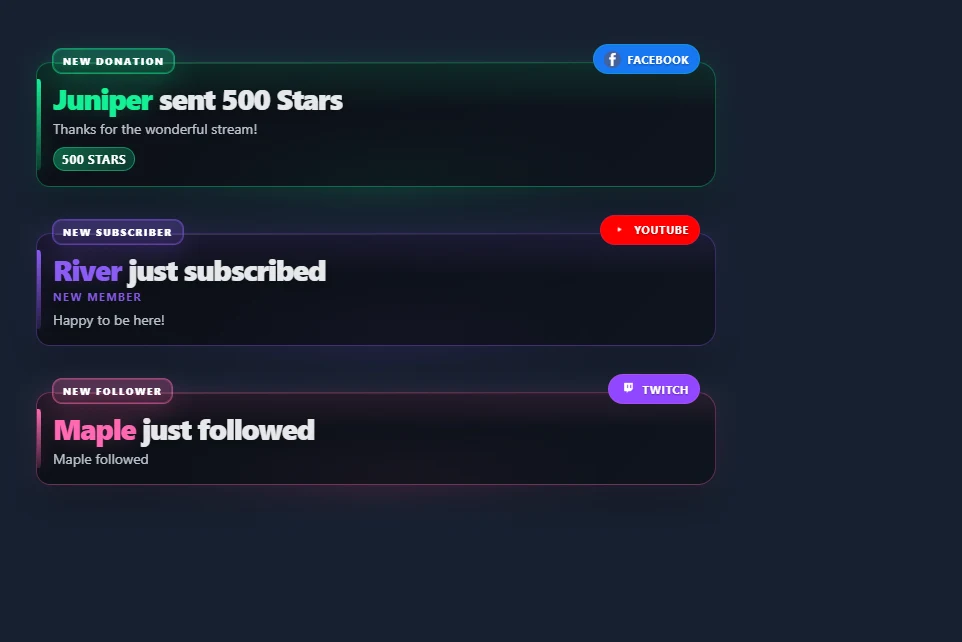
關閉 保持警報直至更換 讓每張卡在配置的顯示持續時間後過期。堆叠立即显示符合条件的到达者;当堆栈关闭时,应用单一警报队列。新警报时会播放声音。持久视频播放一次,媒体区域在显示持续时间后隐藏,而文本保持可见。
使用緊湊的受眾事件列表
開啟 動態 / 事件 並選擇 最近三則 — 透明。受眾預設隱藏標題、時間戳記、元資料、點擊功能、數數、廣告通知和休閒活動。它保留關注、訂閱、付費支援和其他選定的事件類別。如果您想單獨自訂其隱藏項目,請關閉預設。
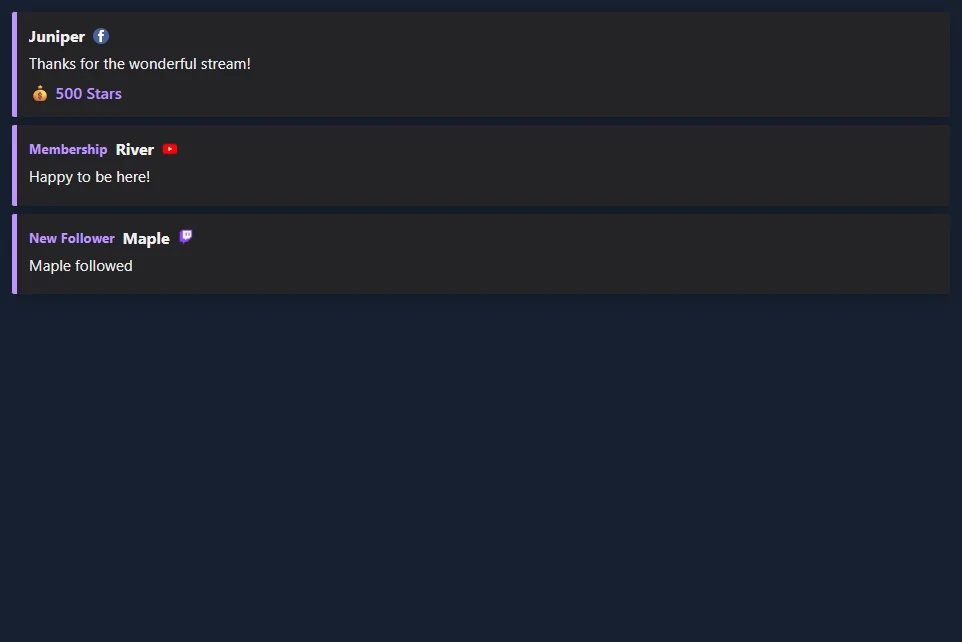
使用 選擇出現哪些事件 過濾類別,以及 要監控的來源 來過濾平台。套裝 刪除之後的事件 为零或留空以保留行直到被替换。 預覽受眾群體列表.
選擇樣式和佈局
瀏覽所有事件清單樣式。每張圖庫卡都有一個螢幕截圖和一個使用您的會話的連結。多重警報支援其現有的藝術作品和堆疊警報主題,以及廣播、輪廓、圓形藥丸和霓虹燈治療。
| 版面配置 | 可用於 |
|---|---|
| 清單 | 最近發生的一些事件,最新的位於頂部或底部。 |
| 橫卡 | 場景中的一行。設定行寬以適合可用空間。 |
| 輪播事件 | 一次一个可见事件,循环显示保留的事件。 |
| 最新分類 | 每個類別中的最新活動。增加可見限制以包含更多類別。 |
| 捲軸 | 一段移動的保留事件。滾動週期控制其速度。 |
調整文字對齊、換行、行寬、間距、背景不透明度和強調色。背景不透明度用纯色半透明背景替换卡片的渐变。进入动画可以使用默认样式、幻灯片、淡入淡出或无。退出动画可以淡出或滑动离开的卡片。減少運動偏好會禁用運動。
Build a classic stream bar
Three overlays combine into a familiar stream layout: a fundraising bar along the top, recent events in a corner and running totals along the bottom. Each one is its own Browser Source, so you can use any of them alone.
| Piece | Where to turn it on | What it shows |
|---|---|---|
| Fundraiser Banner | 贊助罐和目標進度條: set Display Style to Fundraiser Banner. | A flat bar with the goal title, amount raised and goal on one line. Size the source to about 900 × 40. 預覽 |
| Spotlight event list | 動態 / 事件: set Feed style to Spotlight. | One-line rows that hug the right edge, with the newest event highlighted. It needs no other settings and shows the last three events. 預覽 |
| Stream stats strip | 元数据栏: open Stream stats,選擇 Stats to show, then set Style preset to Strip. | The biggest donation, subs today, bits and the time, with an optional latest chat line. Size the source to your canvas width and about 42 tall. 預覽 |
The strip counts donations, subs, bits and follows from the events it receives while it is running, so it does not include anything from before it was added to your scene. Stats, counters and the subathon use the dock feed. To count subscription and follow events, leave 從擴充座中排除警報事件 off. Totals are saved in the browser showing it and survive a refresh. They clear at midnight, or set Reset totals 為 Only with the reset button and use Reset stream stats in the popup. A gifted sub counts once for each sub in the gift, and resubs count as subs. Biggest donation compares USD values and shows the amount as the viewer sent it, so large Bits cheers can take the top spot. Test events you send count too, so reset before going live.
Rename a stat from the popup, for example biggestlabel=Biggest D。使用 stats=biggest,donations,subs,bits,follows,lastchat,clock in any order to choose what appears. In Spotlight, textalign=left moves the rows to the left, cardbg 和 accent set the highlight colors, and textcolor sets the older rows. On the banner, fillstart, trackcolor, bartextcolor, barheight 和 bartextsize change its look.
Show the latest and top supporters
The Meta Data Bar's Stats to show also has presets for the labels you see on many channels: the latest follower, sub, tip and Bits, the top gifter and top Bits of the day, and your total subs and followers. Each one fills in from events as they arrive. Before the first event, a label shows a dash.
To choose your own set, edit stats= in the link: latestfollow, latestsub, latesttip, latestbits, latestraid, topgifter, topbits, totalsubs 和 totalfollows work alongside the keys above, and latestfollowlabel=Newest renames one. Latest values and totals carry over midnight; the top lists start again each day. Total subs and followers need a source that reports them, such as Twitch EventSub. 預覽
Count deaths, wins or anything else
In the Meta Data Bar, list each counter as Name|!command, separated by commas, for example Deaths|!death,Wins|!win. Moderators, the host and admins change them from chat. On YouTube, your own channel is not marked as a moderator, so add your name under "Identify the hosts' name" in SSN. Anyone else's message is ignored unless you turn on Allow viewer adds. That lets each viewer add 1 every five seconds; only moderators can set or reset a count.
| Type this | 會發生什麼 |
|---|---|
!death | Adds one. |
!death +3 或 !death -1 | Adds or removes that many. |
!death =10 | Sets the count. |
!death reset | Back to zero. |
Add rules to let support raise a counter on its own. Owed Pushups|!pushup|sub:15|gift:15 adds 15 for each sub and each gifted sub. You can also use bits (per 100 Bits), tip (per $1) and follow. Counters are saved in the browser showing them and only reset when you ask, and Reset stream stats leaves them alone. 預覽
Stack several goals in one source
新增 goal: to a counter and it shows progress such as 3/25 with a bar. List a few and set Layout to Column to get a goal panel: Sub Goal|!subgoal|sub:1|goal:25,Bits Goal|!bitsgoal|bits:100|goal:20000,Follower Goal|!followgoal|follow:1|goal:150,New Mic|!mic|tip:1|goal:200。新增 daily:1 for a daily goal that starts over at midnight. A goal with only a tip rule shows dollars. Mods can correct one in chat, such as !subgoal =12. For a single large goal with animated styles, use 贊助罐和目標進度條 作為替代。 預覽
Run a subathon timer
In the Meta Data Bar, set a Starting time such as 6h, then the minutes each sub, 100 Bits, $1, follow and raid adds. For tiers, list three values: 6,15,40。開啟 Show rules to display them, and set a longest time to limit what support can add. Moderators can still go past it. Time for follows can be farmed by unfollowing and refollowing, so leave that at 0 unless you trust your chat. The Cards style gives a large clock.
The clock waits for you. Press Start in the popup, or have a moderator type !subathon start. Moderators can also use pause, add 30m, remove 10m, set 6h 和 reset. On YouTube, your own channel is not marked as a moderator, so use the popup buttons or add your name under "Identify the hosts' name" in SSN. It keeps running through a refresh, and Reset stream stats does not touch it. Once it reaches zero, new support no longer extends it, but a moderator can use add to bring it back. Support only adds time while the overlay is open, so keep the source active during the event. 預覽
歷史和控制
啟用 刷新後記住可見事件 当其浏览器源重新加载时保持面板填充。历史记录是该浏览器、会话和板名称的本地记录; OBS和你的普通浏览器有单独的存储。保留设置范围为 1 至 168 小时。恢复的行使用当前过滤器,不会重播声音或触发自动化。在多重警报中,此选项需要堆叠。
賦予不同的場景不同的 董事會名稱。彈出指令針對對應的板名稱和表面。發送到斷開連接的覆蓋層的命令不是保存的狀態變更。暫停將新到達的事件保存在最多 500 個事件的堆疊和提要緩衝區中;簡歷顯示它們。如果該緩衝區已滿,則其最早的等待事件將被取代。單一警報模式使用其配置的佇列限制。
插銷 切换最新卡的密码;固定的卡片占据可见的插槽。如果每个插槽都已固定,请取消固定卡以接纳新事件。 移除 刪除最新的卡。 清除 刪除可見事件、等待事件和該板的已儲存歷史記錄。多重警報還提供跳過、靜音、取消靜音和重播功能。重播是顯示操作,而不是新的捐贈或事件流觸發器。
對於私人事件儀表板,啟用 顯示操作員按鈕 固定或删除单独的行。在受众浏览器源中关闭此选项。
連接您想要顯示的事件
两个叠加层都使用您的 SSN 源提供的事件。覆盖样式不会添加平台权限或新的事件订阅。
| 來源 | 設定和事件報道 |
|---|---|
| Twitch | 使用 Twitch EventSub 對於您的帳戶有權存取的關注、訂閱、禮物、歡呼和突襲。僅聊天捕獲不會取代 EventSub。 |
| 標準 Facebook 捕獲可以將可見的星星捐款轉化為付費支援行。 Facebook API 聊天捕獲不提供星星數量。對於追蹤者和支持者訂閱,請使用將這些通知傳送至 SSN 的事件提供者; Facebook 聊天擷取本身並不能提供這些功能。 | |
| YouTube | 会员资格、礼物、Super Chats、Super Stickers 和珠宝取决于所选的捕获模式。公共订阅者通知需要其 API 路径。參見 事件相容性. |
| Kick 和 TikTok | 使用可用的支援活動的來源進行關注、訂閱或贈送禮物。選擇您要顯示的事件類別;喜歡和加入可以隱藏。 |
| Streamlabs 和 StreamElements | SSN 可以擷取現有的提供者事件來源。連線 SSN 中的提供者並保持其來源處於活動狀態。可用事件取決於提供者連線和來源模式。您可以使用SSN的顯示器,同時保留事件或提示的提供者。 |
| 其他 SSN 来源 | 捐贈金額和認可的關注、會員資格、禮物和攻擊事件可以使用相同的顯示。參見 事件參考 對於特定於來源的欄位和支援的操作。 |
如果缺少真實事件,請先檢查它是否出現在 SSN 的活動來源中。檢查來源連接和事件權限(如果不存在);檢查覆蓋過濾器和最小數量(如果存在)。
取自 Streamlabs 或 StreamElements
對於 Streamlabs 事件清單的始終可見行為,請使用 顯示多個警報 + 保持警報直至更換 在多重警報中,或在事件中預設的受眾。 可見警報/最大事件 設定計數。歷史記錄選項可在同一瀏覽器中恢復最近可見的卡片。使用類別篩選器和最小值控制項來選擇顯示的支援。
您可以將 SSN 的連結直接加入為 OBS 或 Streamlabs Desktop 中的瀏覽器來源。它不需要 SSN 操作員底座。使用圖庫中的 SSN 樣式,然後調整顏色和間距以適合您的場景。